HDR Effect to a Video
Hi Everyone, This is Daniel from f&D. In this video I'm gonna show you How to add Instagram Viral HDR Effect to a Video in a just a click using the App called Time cut. Time Cut App Steps: 1. Open Playstore 2. Download Time Cut : Smooth Motion App 3. Open the App to add HDR Effect 4. In the New Tab Section you can find the 3 HDR Effects 5. Select one of them to add 6. It will ask to purchase Time cut pro or you can watch the ad to unlock the HDR Effect feature for one day 7. Select the video to add HDR Effect That's it Thanks for Watching Also Watch Instagram Trending 3D Zoom and Strobe Effect without Capcut App Subscribe us: http://bit.ly/Subscribe-fandDSaturday, January 7, 2023

Monday, September 12, 2022
Create Stretched Text Effect in Photopea | Photopea Tutorial
Photopea - Stretched Text Effect
Hi Everyone, This is Daniel form f&D. In this video, We are going to see How to make the Stretched Text Effect in Photopea.
Steps:
0:00 About Stretched Text Effect
0:06 Intro
0:15 Open a Project in Photopea
0:25 Type a Text
1:05 Convert Text to Shape
1:16 Select Direct Select Tool
1:31 Draw the Below Half Selection
1:52 Stretch the Text
2:08 Brief
2:19 Conclusion
Also Watch:
Convert Anything to Gold - https://youtu.be/HJyu6EVFU4Y
Subscribe us:
http://bit.ly/Subscribe-fandD
Friday, August 5, 2022
How to Convert Anything to Gold in Photopea | Photo Editing | Free Photo...
Photopea - Convert Anything to Gold
Hi Everyone, This is Daniel from f&D. In this video, We are going to see How to Convert to Gold in Photopea. Photopea is the free browser alternative to Photoshop. Hence you can try this method in Photoshop as well.
Steps:
0:00 About Photopea Tutorial
0:09 Intro
0:16 Open your Image in Photopea
0:19 Remove the Background
0:48 Add New Black Background
1:03 Desaturate
1:24 Invert and Difference Blend Mode
2:05 Gold Gradient Map
2:27 Clipping Mask
2:34 Adding Depth
3:23 Conclusion
3:34 Outro
That's it. Thanks for Watching
Also Watch:
Creative Outline Text in Photopea - https://youtu.be/f2n_tGNmgE0
Subscribe us:
http://bit.ly/Subscribe-fandD
Wednesday, July 6, 2022
Photopea - Knockout Text Effect | Browser Photoshop
Photopea Editing Tutorial - Knockout Text
Hi Everyone, This is Daniel from f&D. In this video, I'm gonna show you How to create Knockout Text effect in Photopea. Photopea is the free browser alternative for Photoshop. Hence you can try this same method in Photoshop as well.
Steps:
00:00 About Photopea Tutorial
00:07 Intro
00:14 Create a New Project
00:25 Drag and Drop your Image
00:33 Add Rectangle Shape
00:51 Add Text
01:13 Text to Selection
01:20 Add Inverted Raster Mask
01:28 Hide the Text Layer
01:34 Overview
01:51 Outro
Thanks for Watching
Also Watch:
Chalk Effect in Photopea: https://youtu.be/PHCD9Pa2H8c
Subscribe us:
http://bit.ly/Subscribe-fandD
Tuesday, July 5, 2022
Photopea - Chalk Effect | Free Browser Photoshop
Photopea Editing - CHALK EFFECT
Hi Everyone, This is Daniel from f&D. In this video, We are going to see How to create Chalk Effect in Photopea. This effect is creating the mock-up of drawing in black board using chalk piece. This effect is created in Photopea which is the free browser photoshop alternative, which can be used in any browser. So you can try this any devices like mobile, tablet, laptop and pc.
Photopea is the browser alternative for Photoshop. Hence you can try this same method in Photoshop as well.
Images to Download: Black Board Man
Steps:
00:00 About Photopea Tutorial
00:06 Intro
00:14 Open Photopea and Black Board Image
00:24 Drag and Drop the Subject Image
00:42 Remove Background
01:32 Filter - Stylize - Find Edges
01:46 Add Levels
02:12 Add Invert
02:26 Change the Blending Mode
02:43 Blending Options
03:13 Full Overview
03:39 Outro
Thanks for Watching
Also Watch:
Paper Texture: https://youtu.be/Px1mlC5DOuo
Subscribe us:
http://bit.ly/Subscribe-fandD
Monday, July 4, 2022
Photopea - How to Create Crumbled PAPER TEXTURE | Free Browser Photoshop
Hi Everyone, This is Daniel from f&D. In this video, I'm gonna show you How to create Paper Texture from scratch in photopea. This paper texture is crumbled. Photopea is more or less same as the photoshop, Hence if you are familiar in photoshop you can easily recreate this same method in photoshop as well.
Steps:
00:00 About Photopea Tutorial
00:07 f&D Intro
00:12 Open Photopea and Create a New Image
00:34 Use Gradient Tool to create Diamond Gradients
01:06 Filter - Stylize - Emboss
01:46 Add Levels to Adjust the Texture
02:08 Adding Text over the Texture
02:44 Adding Blending Options to the Text
02:59 Adjust the Levels
03:23 Thanks for Watching
03:33 Outro
Thanks for Watching.
Also Watch:
How to Add Spot Light Effect in Photopea - https://youtu.be/EhZl7DJpHfE
Subscribe us:
http://bit.ly/Subscribe-fandD
Friday, April 15, 2022
1234 Dum Tak Dum Tak Trending Reels Tutorial | Loading Screen Instagram ...
How to do Dum Tak Dum Tak Reel for Instagram | Trending 1 2 3 4 Loading Screen Instagram Reel Tutorial
Hi Everyone, This is Daniel form f&D. In this video, I'm gonna show you How to create Dum Tak Dum Tak Reel using the app called Mast. This reel is trending in Instagram and other social medias. This reel can also be called as 1 2 3 4 Dum Tak Dum Tak Reel which also has the loading screen and photo transitions. This can be easily done using the Mast app.
App Link
Thanks for Watching.
Also Watch:
Photo Painting Reel: https://youtu.be/p_GR9xOCvB4
Subscribe us:
http://bit.ly/Subscribe-fandD
Thursday, April 14, 2022
Instagram Trending Photo Painting Reels Editing Tutorial | Photo Paintin...
Photo Painting Reels Editing Tutorial | Trending Instagram Reels Tutorial
Hi Everyone, This is Daniel from f&D. In this video, We are going to see How to create a Photo Painting Reel that is trending in Instagram and other social medias using the app called Rizzle. This Instagram Photo Drawing Reel is very easy to create using this rizzle app. You can see this photo painting option in the Template inside the app.
App Link
Thanks for Watching.
Also Watch:
3D Zoom without Capcut - https://youtu.be/CewwcsbCy9Q
Subscribe us:
http://bit.ly/Subscribe-fandD
Friday, March 11, 2022
LIGHTROOM 2022 MOBILE Full Tutorial | Lightroom Photo Editing | Adobe Li...
Adobe Lightroom Mobile 2022 - FULL TUTORIAL
Hi Everyone, This is Daniel from from f&D. In this video, We are going to see How to edit photos using Lightroom Mobile (Basic Tutorial for Beginners). Lightroom Photo Editing can be done using both the free version and paid version but Lightroom free version is more than enough. You can learn all the features in the lightroom mobile free version by watching this lightroom basics video.
0:00 Intro
0:22 How to Download
0:33 How to Add Image
0:56 Crop, Rotate, Flip, Resolution
2:08 Auto Correct
2:31 Light
4:41 Curves
6:63 Colors
8:01 Color Mix
11:08 Split Toning
11:47 Effects
13:05 Details
13:33 Optics
13:48 Profiles
13:55 Creating Preset
14:37 Export
15:08 Outro
Also Watch:
Picsart Complete Basics: https://www.youtube.com/watch?v=lFGFqcQe9wA
Subscribe us:
http://bit.ly/Subscribe-fandD
Thursday, March 3, 2022
How to Add Spot Light Effect in Photopea | Browser Photoshop
Photopea - How to Add Spot Light
Hi Everyone, This is Daniel from f&D. In this video, I'm gonna show you How to add Spot Light Effect in Image using Photopea.
Steps:
1. Open Image in Photopea. Sample Image
2. Add Curves Adjustment Layer to Darken the Background.
3. Add a New Layer
4. Draw the Rectangular Selection using Rectangle Selection Tool
5. Add the Gradient with white in left side and transparency in right side
6. Make it look like the spot light using Perspective Tool
7. Add Blur to the Spot Light
That's it. Thanks for Watching.
Also Watch:
How to create a Text Portrait in Photopea - https://youtu.be/5VIqzaPUxP4
Subscribe us:
http://bit.ly/Subscribe-fandD
Saturday, February 26, 2022
Instagram Trending 3D Zoom and Strobe Effect without Capcut App | Trendi...
Trending Instagram Reels - 3D Zoom and Strobe Effect without Capcut using the App called mAst.
Hi Everyone, This is Daniel. In this video, I'm gonna show you How to make Trending 3D Zoom Strobe Effect of Capcut without using any screem recording software and also without Capcut. This type of video is trending in Instagram, TikTok and other social media. This trend is also called as Face Off Trend.
mAst App
Also Watch:
Old Palace Reel Tutorial: https://youtu.be/x4aPoWotLsU
Subscribe us:
http://bit.ly/Subscribe-fandD
Subscribe to:
Posts (Atom)
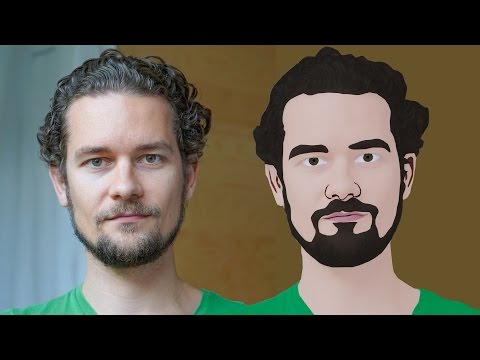
GIMP Cartoon Effect Tutorial
Hi Everyone, In this video I'm gonna show you How to create a Cartoon Version of Yourself or Someone using the Open Source Software...
-
Make your Image sing and vibe for a Song using an Android App Hi Everyone, This is Daniel from f&D. In this video, We are going to see ...
-
Spider-man Web Shooter Transition Tutorial using VN App | Spiderman Web Transition TikTok Trend | Instagram Trend Hi Everyone, In this vid...

