Genmo - Instagram Tiktok Reel AI Infinite Animation Tutorial | Stable Diffusion Deforum Alternative
Hi Everyone, This is Daniel from f&D. In this video, We are going to see How to create AI Animations from a Photo using the website called Genmo. Usually this tiktok and instagram trending AI Animation are made using the Stable Diffusion Deforum Extension. Also there is the website called kaiber ai but it is paid and the genmo is free and have enough credits for a day.
Steps:
00:00 Genmo Tutorial
00:20 Intro
00:27 genmo.ai
00:43 Creating the first frame of the video
02:24 Adding Prompts for AI Animation
02:51 Download the AI Video
03:07 Repeat the Process
04:54 Genmo Modes
05:18 Video Duration
05:28 Genmo Watermark
05:36 Merge the AI Generated Videos
05:57 Conclusion
06:04 Outro
Thanks for Watching.
Also Watch
Free Midjourney V5 Alternative - https://youtu.be/AG_dHqSDs9Y
Subscribe us:
http://bit.ly/Subscribe-fandD
Tuesday, May 16, 2023

Tuesday, May 2, 2023
Get the Perfect Prompt for Your Images with Midjourney's Describe Feature
How to use /describe command in Midjourney
Hi Everyone, This is Daniel from f&D. In this video, We are going to see How to use Describe Feature in Midjourney. Simply upload your image using describe commant and let Midjourney provide the perfect prompt for stunning results. Midjourney will give 4 prompts for the given image and you can use those as it is or you can change the prompts. So basically used to reverse enginneer the prompts.
Steps:
00:00 About /describe command
00:17 Intro
00:25 How to use Describe feature
01:13 How to use the prompts from describe
02:33 Use Describe for photography
05:13 For Interiors and Art Styles
06:21 Conclusion
06:37 Outro
Thanks for Watching.
Also Watch:
Upscale AI Images: https://youtu.be/1uFddBCjgGU
Subscribe us:
http://bit.ly/Subscribe-fandD
Monday, April 24, 2023
Upscale AI Images | 2 Methods
How to Upscale AI Images using 2 Methods
Hi Everyone, This is Daniel from f&D. In this video, We are going to see How to upscale AI Images or any Images using 2 different methods. One using ruDALL-E and another one is using upscale media. ruDALL-E can scale upto 8x but upscale media only upto 4x but it can enhance your image additionally.
Upscale Website Links:
Steps:
00:00 Upscale Images Introduction
00:11 Intro
00:18 ruDALL-E Upscale
01:33 Upscale Media
03:02 Outro
Also Watch:
Invite Midjourney Bot to your Server: https://youtu.be/Zwo9f_RAoZU
Subscribe us:
http://bit.ly/Subscribe-fandD
Sunday, April 16, 2023
How to Invite the Midjourney Bot to your Discord Server | Add Midjourney...
Invite Midjourney Bot to your Server
Hi Everyone, This is Daniel from f&D. In this video, We are going to see How to Invite Midjourney Bot to your discord server.
Steps
00:00 About
00:08 Intro
00:15 Create a Server
00:46 Add Midjourney Bot
01:29 Trying Prompts in Server
01:54 Outro
Thanks for Watching
Also Watch:
Buy Subscription on Midjourney: https://youtu.be/A5z20A9nbIo
Subscribe us:
http://bit.ly/Subscribe-fandD
Saturday, April 1, 2023
Free Midjourney V5 Alternative | Discord | Unlimited Free Images | Bluew...
Free Midjourney Alternative - Bluewillow AI
Hi Everyone, This is Daniel from f&D. In this video, We are going to see the Free Alternative for Midjourney V5. Since Midjourney has locked its Free Trial for temporary period, there is another AI Image Generator which you can use it on discord which is called Bluewillow AI.
This Bluewillow which is pretty much similar to Midjourney. Even the initial command is 'imagine' which we use on midjourney and then we type the image or text prompts and then parameters.
Like in Midjourney we also have V and U buttons which means variations and upscale respectively. So Bluewillow AI is the perfect alternative for Midjourney.
Saturday, March 25, 2023
How to Use GPT-4 for Free | Try Chat GPT 4 for Free | Bing Chat | Nat Dev
GPT-4 can be accessed for FREE using this two simple methods.
Hi Everyone, This is Daniel from f&D. In this video, I'm gonna show you How to try GPT - 4 for Free using two different methods without subscribing to ChatGPT Plus.
First method is using Microsoft Bing AI Chat and the next one is using nat.dev website. You can see on the Microsoft Bing Blogs Bing AI chat is running on gpt - 4 so you can now try the gpt - 4 using the Bing AI Chat.
Also the second method of using gpt 4 is using the nat dev website where there many models are available including gpt 4 and also gpt 3.5 which is the free version of chatgpt. But the only limitation in nat dev is you cannot give unlimited inputs to gpt 4 ai language model. Also here you can compare multiple language models at once.
Wednesday, March 22, 2023
How to Use Reference Image in Midjourney | How to upload images in Midjo...
Upload and Use Reference Images in Midjourney
Hi Everyone, This is Daniel from f&D. In this video, We are going to see How to use reference images in midjourney to generate ai images. There are two different methods to upload images in midjourney. One is directly uploading the images in discord and another one is using third party website.
To use reference images to need to paste your link before the prompt in midjourney discord.
Thanks for Watching
Also Watch:
Getting Started in Midjourney: https://youtu.be/UDpUpvg-mXU
Subscribe us:
http://bit.ly/Subscribe-fandD
Wednesday, March 15, 2023
How do I use Midjourney AI | Getting Started with Midjourney AI
Midjourney Beginner Guide (A.I. Art)
Hi Everyone, This is Daniel from f&D. In this video, I'm gonna show you How to generate A.I. Images using Midjourney. It is the discord server where you can type your prompt and convert into image. Basically it is the text to image generator.
Notes:
To generate images using Midjourney, you need to have a discord account. Create a new discord account and login using that. Then go to Midjourney website and join the beta. After that you can use the Midjourney bot as I mentioned in the video.
Websites:
https://www.midjourney.com/
https://discord.com/
00:00 Introduction
00:08 Channel Intro
00:15 Discord Account
00:54 Joining Midjourney Server
01:13 Verify your E-mail
01:32 Midjourney Info
02:50 AI Image Generation
06:06 Midjourney Subscription
06:55 Outro
Thanks for Watching
Also Watch:
Easy Way to Remove Background using Photopea with Photoroom - https://youtu.be/F24nNBEJ7Kw
Subscribe us:
http://bit.ly/Subscribe-fandD
Saturday, January 7, 2023
How to add HDR Effect to Video in just a Click | Instagram Viral HDR Effect
HDR Effect to a Video
Hi Everyone, This is Daniel from f&D. In this video I'm gonna show you How to add Instagram Viral HDR Effect to a Video in a just a click using the App called Time cut. Time Cut App Steps: 1. Open Playstore 2. Download Time Cut : Smooth Motion App 3. Open the App to add HDR Effect 4. In the New Tab Section you can find the 3 HDR Effects 5. Select one of them to add 6. It will ask to purchase Time cut pro or you can watch the ad to unlock the HDR Effect feature for one day 7. Select the video to add HDR Effect That's it Thanks for Watching Also Watch Instagram Trending 3D Zoom and Strobe Effect without Capcut App Subscribe us: http://bit.ly/Subscribe-fandDMonday, September 12, 2022
Create Stretched Text Effect in Photopea | Photopea Tutorial
Photopea - Stretched Text Effect
Hi Everyone, This is Daniel form f&D. In this video, We are going to see How to make the Stretched Text Effect in Photopea.
Steps:
0:00 About Stretched Text Effect
0:06 Intro
0:15 Open a Project in Photopea
0:25 Type a Text
1:05 Convert Text to Shape
1:16 Select Direct Select Tool
1:31 Draw the Below Half Selection
1:52 Stretch the Text
2:08 Brief
2:19 Conclusion
Also Watch:
Convert Anything to Gold - https://youtu.be/HJyu6EVFU4Y
Subscribe us:
http://bit.ly/Subscribe-fandD
Friday, August 5, 2022
How to Convert Anything to Gold in Photopea | Photo Editing | Free Photo...
Photopea - Convert Anything to Gold
Hi Everyone, This is Daniel from f&D. In this video, We are going to see How to Convert to Gold in Photopea. Photopea is the free browser alternative to Photoshop. Hence you can try this method in Photoshop as well.
Steps:
0:00 About Photopea Tutorial
0:09 Intro
0:16 Open your Image in Photopea
0:19 Remove the Background
0:48 Add New Black Background
1:03 Desaturate
1:24 Invert and Difference Blend Mode
2:05 Gold Gradient Map
2:27 Clipping Mask
2:34 Adding Depth
3:23 Conclusion
3:34 Outro
That's it. Thanks for Watching
Also Watch:
Creative Outline Text in Photopea - https://youtu.be/f2n_tGNmgE0
Subscribe us:
http://bit.ly/Subscribe-fandD
Subscribe to:
Posts (Atom)
GIMP Cartoon Effect Tutorial
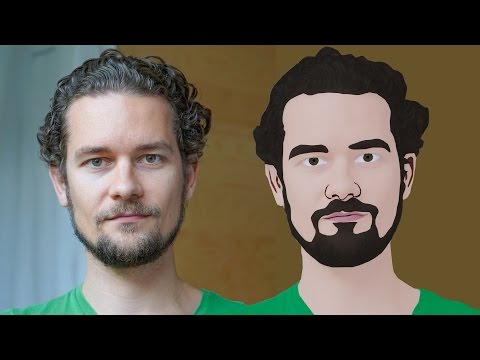
Hi Everyone, In this video I'm gonna show you How to create a Cartoon Version of Yourself or Someone using the Open Source Software...
-
Make your Image sing and vibe for a Song using an Android App Hi Everyone, This is Daniel from f&D. In this video, We are going to see ...
-
Photopea - Neon Text Effect Tutorial Hi Everyone, In this video I'm gonna show you How to make Neon Text Effect in Photopea. This phot...

